What is general — field mapping?
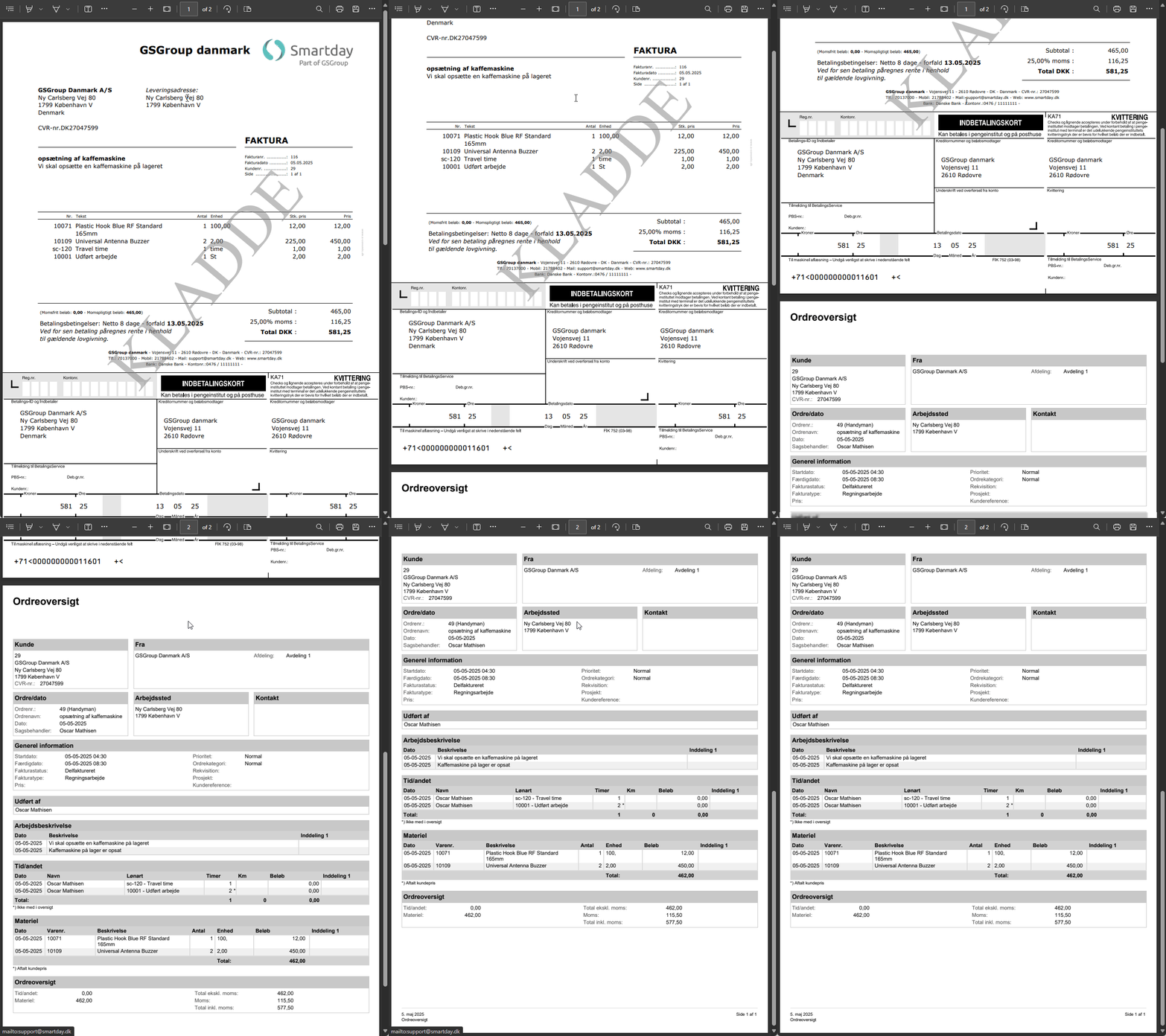
The following fields are transferred from the General tab in Handyman to the e-conomic invoice (see screenshot below):
| Handyman field | e-conomic field (invoice) |
|---|---|
| (2) Order name | Heading |
| (3) Main order (project) | Project no. |
| (4) Requisition | Requisition no. |
What is hours and costs — field mapping?
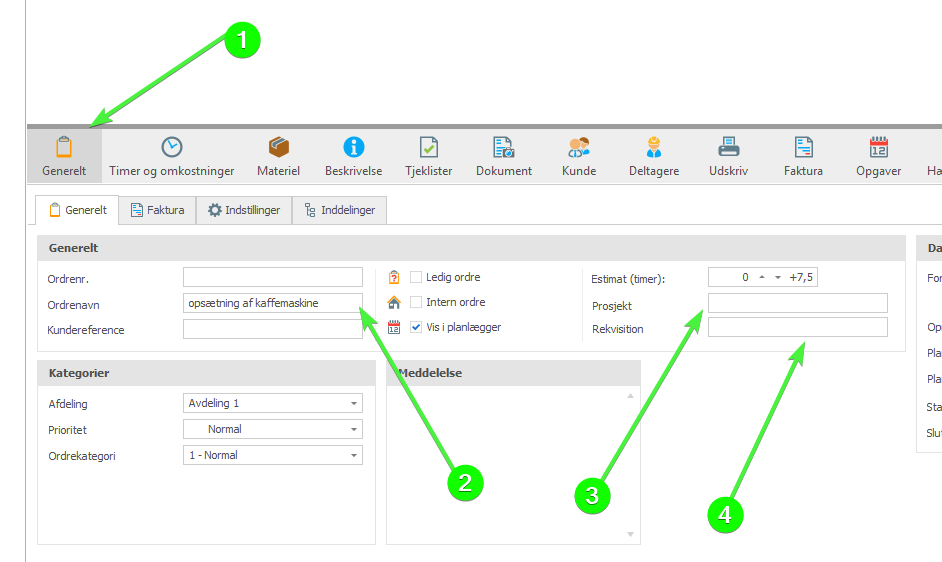
The following fields are transferred from Hours and costs (see screenshot below):
| Handyman field | e-conomic field (invoice) |
|---|---|
| (1) Cost element no. | Item no. |
| (2) Cost element | Item name |
| (3) Price | Unit price |
| (4) Quantity | Quantity |
| (5) Total | Total |
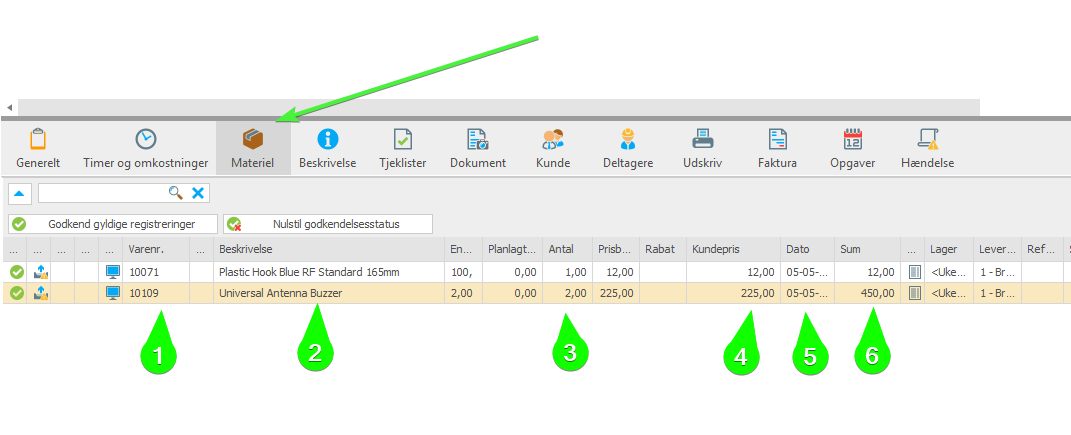
How it appears in e-conomic:

What is materials — field mapping?
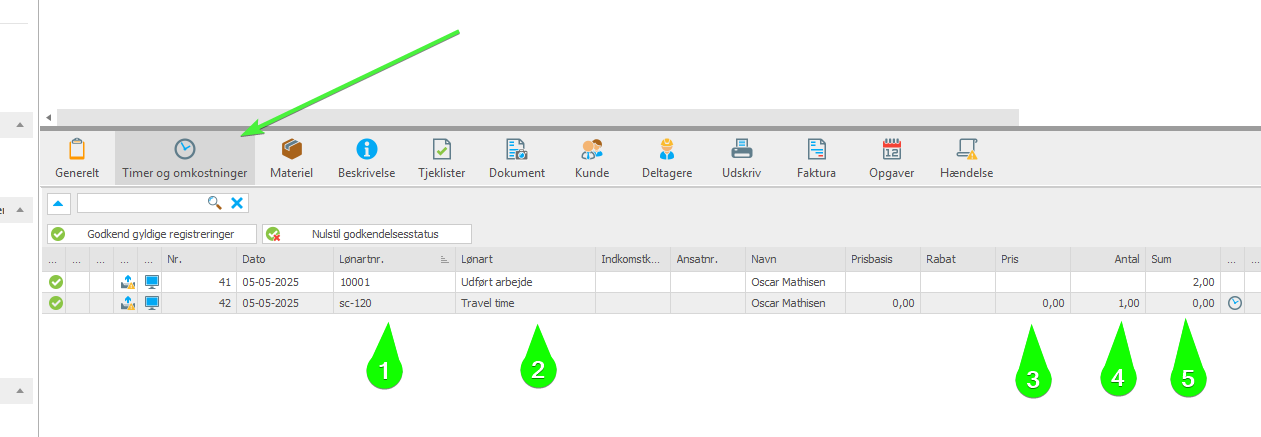
The following fields are transferred from Materials (see screenshot below):
| Handyman field | e-conomic field (invoice) |
|---|---|
| (1) Item no. | Item no. |
| (2) Description | Item name |
| (3) Quantity | Quantity |
| (4) Customer price | Unit price |
| (5) Date | (not available) |
| (6) Total | Total |
How it appears in e-conomic:

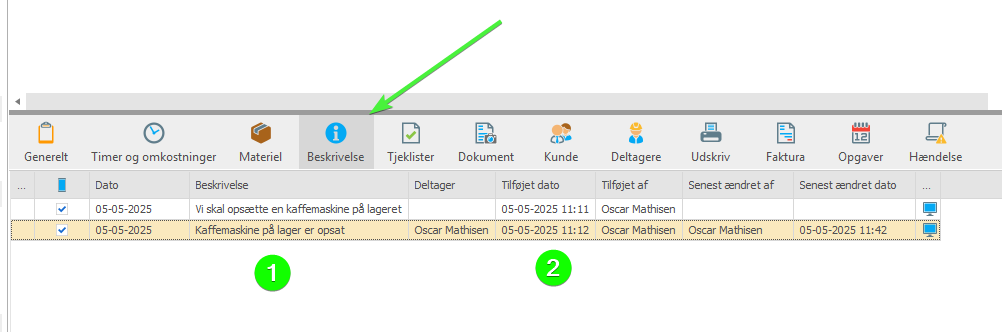
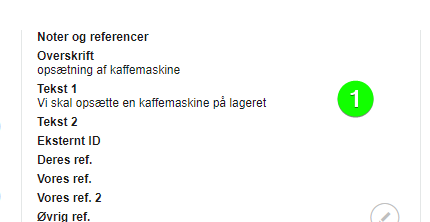
What is descriptions — field mapping?
The following description fields are transferred:
| Handyman field | e-conomic field (invoice) |
|---|---|
| (1) Description | First description on order |
| (2) Description | Invoice text (concatenated) |
How it appears in e-conomic:
How to invoice from Handyman to e-conomic?