
Overview
The Handyman integration with Business NXT is a complete two-way integration based on sales orders in Business NXT. It also integrates with store management and store stock handling.
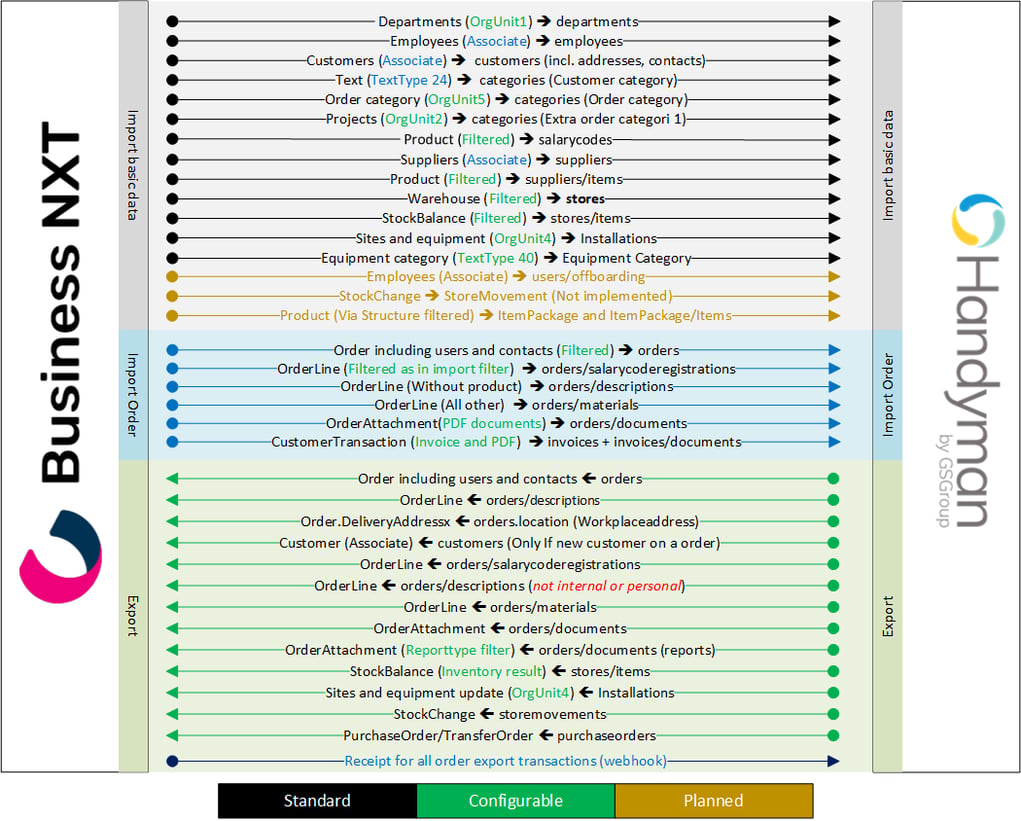
What basic data is transferred from Business NXT to Handyman?
Business NXT is the master for many elements, but there is significant flexibility in how data is transferred and where the source data lives in Business NXT. This is important because Business NXT you can configure and used very differently across organisations. The integration is designed to adapt easily to each customer's setup.
| Element | Source | Configurable | Comment |
|---|---|---|---|
| Customers | Associate | Filter | Customer category: Text type 24 is the default (actor group 1), but others you can use. |
| Departments | OrgUnit1 | Source and filter | |
| Employees | Associate | Filter | |
| Suppliers | Associate | Filter | |
| Products — materials | Product | Filter + price source | Products not related to time or other costs. Option to assign all items to a single supplier in Handyman. |
| Products — cost elements | Product | Filter + price source | Products related to time and other costs. |
| Products — article packages | Product | Filter + price source | Not yet implemented. |
| Installation sites and equipment | OrgUnit4 | On/Off + source and filter | Two different methods for structuring the hierarchy. |
| Equipment category | Text | Filter | Text type 40 is the default (group 5 on OrgUnit), but others you can use. |
| Project | OrgUnit2 | On/Off + source and filter | |
| Order category | OrgUnit5 | On/Off + source and filter | |
| Stores | Store | Filter | Only stores with a responsible person are transferred. A configurable exclusion list of store locations is available. |
| Store stock | StockBalance | On/Off + filter | Transferred nightly. Configurable exclusion list of stores. |
| Store movements | StockChange | — | Not yet implemented. Covered by the nightly stock transfer. |
All changes to the following basic data elements are transferred automatically and immediately after saving in Business NXT, via Webhooks, so Handyman is always kept in sync.
What order data is transferred from Business NXT to Handyman?
Orders can be created in Business NXT. If they fall within the defined filter criteria, they are transferred to Handyman. This allows orders that are not relevant for Handyman — such as direct sales of equipment and services — to remain in NXT only.
| Element | Source | Configurable | Comment |
|---|---|---|---|
| Sales orders | Order | Filter | Responsible and participant can be specified in NXT. |
| Order lines | OrderLine |
|
|
| Order documents | OrderAttachment | ||
| Invoice document | CustomerTransaction | On/Off |
Just like with master data, changes to orders in Business NXT will be delivered immediately to Handyman using WebHooks.
Example:
When an order is finally invoiced in Business NXT, the order is automatically set as finally invoiced and historical in Handyman.
What order data is transferred from Handyman to Business NXT?
New orders can be created in Handyman Mobile. In Handyman Office, orders can be generated from service contracts or created manually during planning. Regardless of source, all registrations made in Handyman Mobile and Handyman Office are sent to Business NXT, which immediately confirms back with updated prices and costs.
This makes the integration fully seamless — both systems are updated as quickly as possible, regardless of where the change originates.
| Element | Source | Configurable | Comment |
|---|---|---|---|
| Sales orders | Order | ||
| Order lines | OrderLine |
|
|
| Order documents | OrderAttachment | On/Off | A configurable selection of reports to transfer. |
What other data is transferred from Handyman to Business NXT?
| Element | Source | Configurable | Comment |
|---|---|---|---|
| Stocktaking results | StockBalance | — | |
| New customers | Customer | Customer number series | Creating new customers in Handyman Office can be blocked. |
| Updated installation site and equipment information | OrgUnit4 | Source + whether transfer occurs | Two-way integration. Changes can be made in both Handyman and NXT. |
| Purchase order fra Handyman Mobile | Transfer order or Purchase order | Treat as an purchase order or transfer from main store to car store | |
| Store movement | Manual transfer between stores on Mobile or Office | On/Off | Store is immediately updated in NXT |
Other configuration
In addition to sources and selections for basic data, there is also the option of selecting individual important fields on different elements. Business NXT has flexible options for using many free additional fields. We use several of these in the integration. Some are configurable and some are fixed. In addition to this, some options can be turned on or off.
Field-based configurations
| Element | Handyman field | NXT field | Comment |
|---|---|---|---|
| Order | Customer reference | None, yourReference, or optional OrgUnit | |
| Order | Main order | None, mainOrderNo, or optional OrgUnit | |
| Order | Requisition | None, requisitionNo, or optional OrgUnit | |
| Order | Order name | None or optional information 1–6 | |
| Order | Order type | None or optional group 1–12 (Group 6 and 10 are reserved. See below) |
100 = Work order If no configuration is selected, order type is determined automatically based on whether equipment exists on the order or owner. |
| Customer | Customer category | None or optional group 1–12 | Default: group1 |
| Price list (materials) | Product group | None or optional group 1–12 |
Fields that cannot be configured
Some fields on the order header and equipment info have fixed configurations. This may change in later versions if needed.
| Element | Handyman field | NXT field | Comment |
|---|---|---|---|
| Order | Controlled/finished status | group6 | 1 = Finished, 2 = Pre-approved in Handyman, 3 = Approved in Handyman |
| Order | Order to Handyman | group10 | Used to specify whether an order should go to Handyman. Also a fixed part of the order import filter. 1 = Show in Handyman |
Other settings
On/Off settings that affects the integration behaviour
| Setting | Description |
|---|---|
| Execute Import On Timer | Transfers store stock every night at 03:00. |
| Enable document/report export | Transfer PDF documents and selected reports from Handyman to NXT. |
| Import Equipment | Import installation sites and equipment from NXT. |
| Enable import extra order category 1 | Import project to extra order category 1. |
| Enable order category import | Import order categories from NXT. |
| Set orders to free if no participants exist | Set new orders from NXT as unassigned if no participant is specified. |
| Use incurred field for quantity on order lines | Use the incurred quantity as the quantity on order lines. This allows invoicing a different quantity than what was registered in Handyman. |