How do I install Handyman Mobile?
Install Handyman Mobile from the app store for your device:
- Android — Google Play Store
- iOS (iPhone/iPad) — Apple App Store
- Windows — Microsoft Store
Search for Handyman Mobile, install the app, then open it to continue.
How do I change the language in Handyman Mobile?
Depending on your device and location, Handyman Mobile may not launch in your preferred language. To change it:
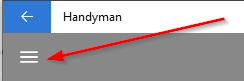
- Tap the Hamburger menu (☰) in the top left to open the main menu.
- Select Settings.
- Select Language.
- Choose your language from the list.
Handyman Mobile restarts in your selected language.
How do I enter the server address?
Handyman Cloud users: skip this step — the server address is already configured by default.
For on-premises installations, enter the server details provided by your IT department or GSG Handyman:
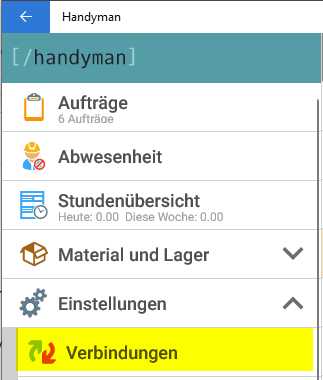
- Tap the Hamburger menu (☰) to open the main menu.
- Select Settings.
- Select Connections.
- Enter the server address and port — both fields are required.
- Make sure your device is connected to the internet.
The connection settings are saved automatically.
How do I synchronise for the first time?
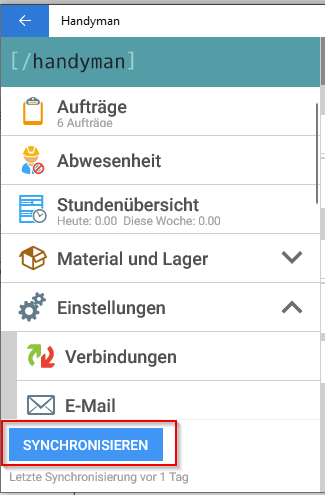
- Tap the Hamburger menu (☰) to open the main menu.
- Tap Synchronise.
Handyman Mobile connects to the server and downloads your data.
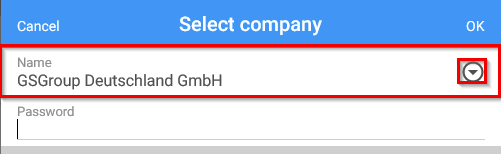
How do I select my company?
- Enter the company password provided to you.
- Select your company from the list.
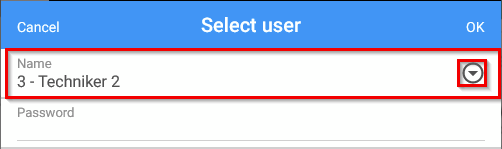
How do I select my user?
- Enter the user password provided to you.
- Select your name from you list.
Handyman Mobile opens the order list and is ready to use.