
What you need before you start?
You need a Handyman Office user with System Administrator rights. Handyman consists of three components:
- Handyman Office — the desktop application for planners and service managers
- Handyman Mobile — the app for service technicians
- Handyman Connect — the customer-facing portal
This guide covers the essential setup steps. For complex multi-department installations, contact a Handyman consultant.
How do I create a supplier?
In Handyman Office, go to Logistics → Supplier → New. Enter the supplier's number and name, then click OK.
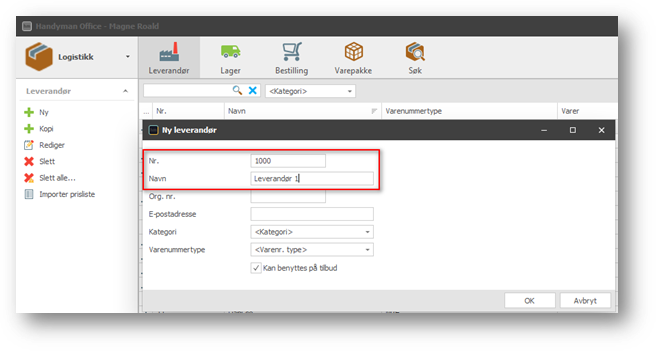
The supplier appears in the list under Logistics → Supplier and can later be made available to employees via trade groups.
How do I add items to a supplier's price list?
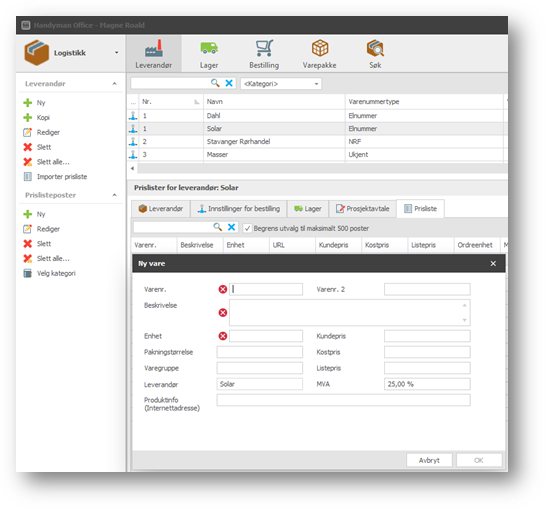
In Handyman Office, go to Logistics → Supplier → Price list → Price list items → New. Complete all mandatory fields for each item, then click OK.
How do I import a price list?
In Handyman Office, go to Logistics → Import price list and follow the on-screen instructions. You can import CSV or Excel files. The imported items appear in the supplier's price list immediately after import.
How do I configure company-wide settings?
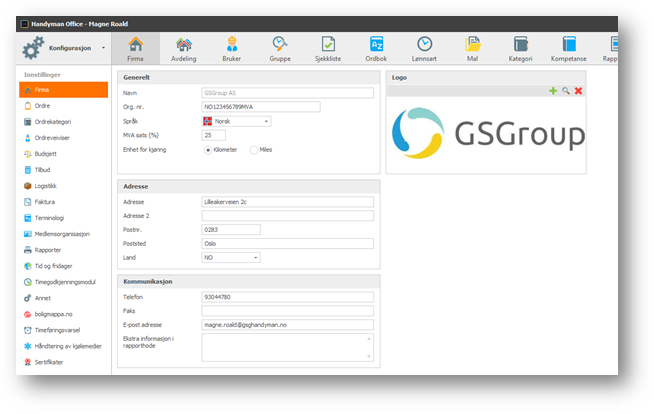
In Handyman Office, go to Configuration → Company → Company. Enter your company name, VAT number, language, and contact details, then click Apply.
How do I set up departments?
Departments let you divide your organisation into areas, regions, or specialisations. Handyman has one department by default — sufficient for most organisations.
To create additional departments, go to Configuration → Department → New. Multiple departments add complexity — only create them if your organisation needs separate workflows.
With multiple departments you can:
- Print different company information per department in reports
- Configure department-specific automatic report generation
- Restrict access to orders, customers, and employees by department
- Use different Handyman configurations per department
How do I configure Handyman Mobile settings for a department?
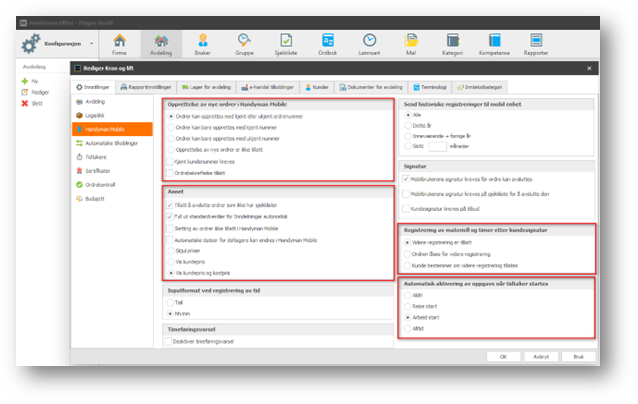
In Handyman Office, go to Configuration → Department → Edit → Settings → Handyman Mobile. Adjust the settings, then click Apply.
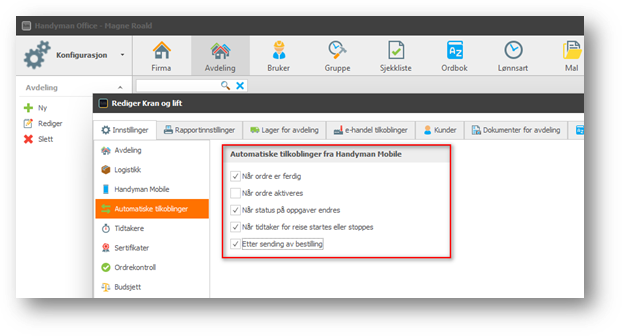
How do I configure automatic connections for Handyman Mobile?
In Handyman Office, go to Configuration → Department → Edit → Settings → Automatic connections. Set the automatic sync rules, then click Apply.
How do I create a user?
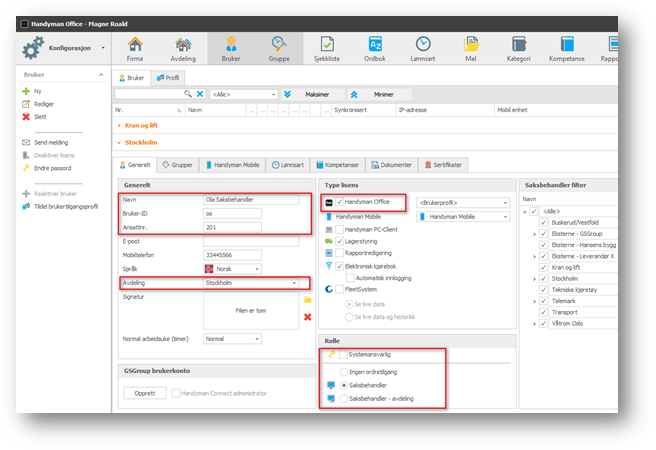
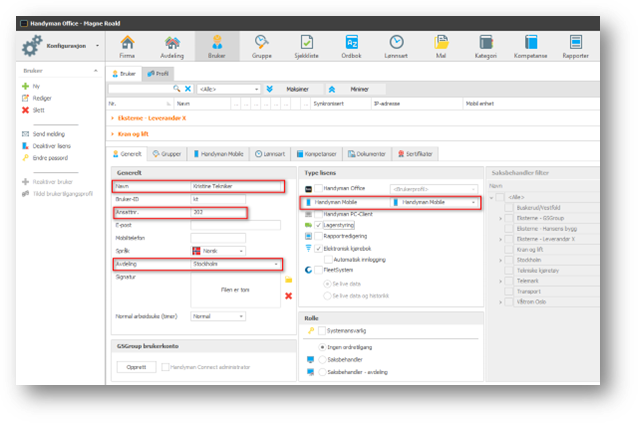
In Handyman Office, go to Configuration → User → New. Assign a license and a role matching your function.
Official in charge (planner or service manager) — enter at minimum: Name, User ID, Employee number, Department. Assign a Handyman Office license and role.
Mobile user (service technician) — enter at minimum: Name, Employee number, Department. Assign a Handyman Mobile license. Group configuration can be done later.
How do I create a checklist?
Checklists document work such as test reports, measurement protocols, maintenance checklists, and sign-off checks.
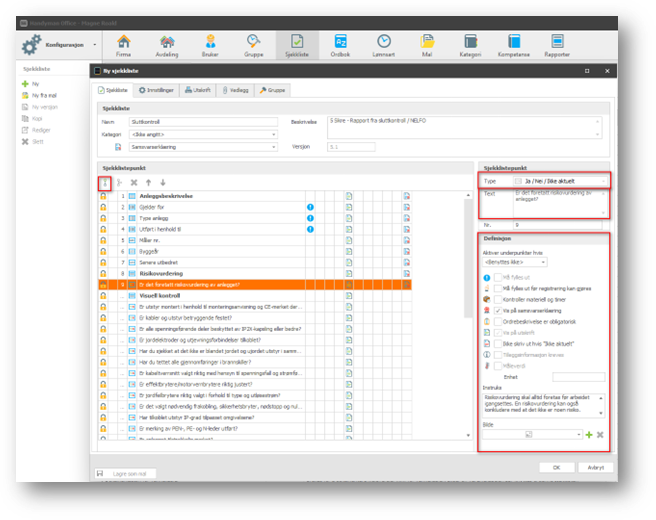
- Go to Configuration → Checklist → New.
- Enter a name and description.
- Add checklist items — the individual items technicians complete in Handyman Mobile.
- Under Definition, select the rules for registration and completion.
- Use the Group tab to assign access to the checklist.
- Click OK to save.
How do I create a Cost Element?
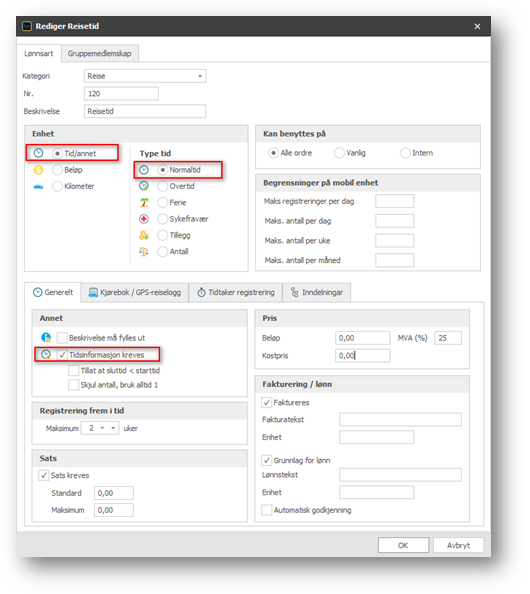
Cost Elements define the types of hours and costs employees can register — such as regular hours, travel time, travel allowance, sick leave, or holiday.
In Handyman Office, go to Configuration → Cost element → New. Fill in the required fields and click OK.
How do I create an order category?
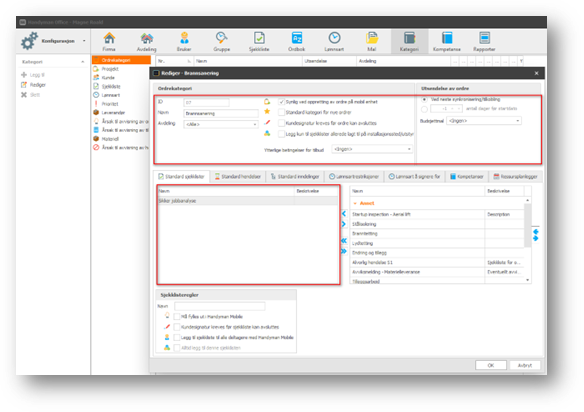
Order categories distinguish between types of orders and control planning rules and documentation requirements.
In Handyman Office, go to Configuration → Category → Order category → New. Fill in the required fields and click OK.
How do I set up employee groups?
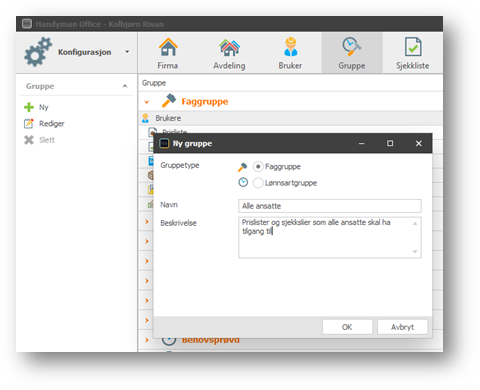
Groups control which employees have access to which data. In Handyman Office, go to Configuration → Group → New. Enter the group name, adjust the settings, then click OK.
How do I configure trade groups?
Trade groups control which price lists and checklists are available to group members. In Handyman Office, go to Configuration → Group → Trade group. Assign the desired price lists, checklists, and employees.
How do I configure Cost element groups?
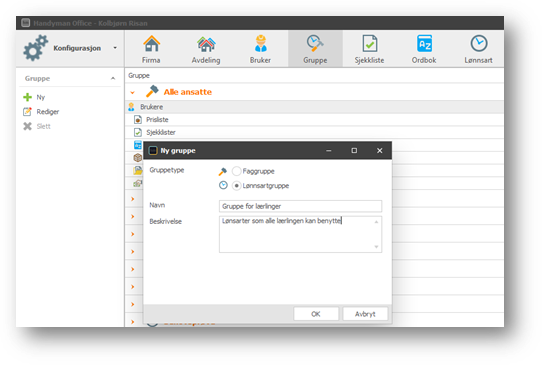
Cost element groups control which Cost Elements each employee can use. In Handyman Office, go to Configuration → Group → Cost element group. Assign the desired Cost Elements and employees.
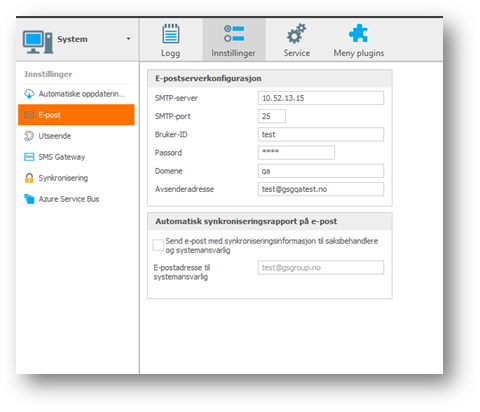
How do I set up email sending?
To send reports and messages from Handyman Office by email, configure an email server. Go to System → Settings → Email. Enter the server details and click Apply.
Handyman Mobile sends emails via the device's standard email setup or a separately configured email server in Handyman Mobile.